
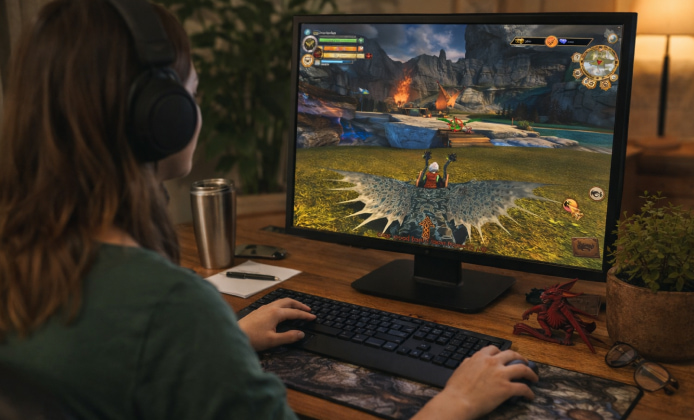
Getting into School of Dragons is most fun when setup problems don’t slow you down, so this guide focuses on clear steps, safe downloading habits, and quick fixes for the most common install issues. You’ll learn how to prepare your device, choose the right installer, complete installation, and troubleshoot launch or login problems without guesswork.
Before You Start: Quick Prep Checklist
- Restart your PC or laptop to clear background installers and pending updates.
- Check you have enough free storage for the game files and future updates.
- Update your graphics drivers if you haven’t done so in a while.
- Use a stable internet connection (Wi-Fi is fine, but avoid unstable hotspots).
- Temporarily pause heavy downloads or streaming while installing.
A helpful habit is to keep the installer file in a simple folder like
DownloadsorDesktopso you can find it quickly during setup and troubleshooting.
System Requirements Snapshot
Exact requirements can vary by release and platform, but the table below gives a practical baseline that works for most modern Windows laptops and desktops.
| Component | Recommended Starting Point | Why It Matters |
|---|---|---|
| OS | Windows 10 / Windows 11 | Compatibility and driver support are typically best here. |
| CPU | Dual-core or better | Helps keep loading and world transitions smooth. |
| RAM | 4–8 GB | Reduces freezing when many apps are open. |
| GPU | Integrated is OK; dedicated is better | Improves frame rate and stability at higher settings. |
| Storage | A few GB free (plus extra for updates) | Prevents failed patches and incomplete installs. |
| Internet | Stable broadband | Accounts, updates, and online worlds need consistency. |
Where to Download School of Dragons Game Safely
Whenever a game has a long history and multiple versions floating around, it’s important to download only from sources you trust. Avoid “bundle” sites that attach extra software, and be cautious with pages that aggressively push browser extensions.
- Prefer the official publisher page or a reputable platform listing.
- Skip downloads that require “download managers” you didn’t ask for.
- Watch for look-alike buttons; the real download usually appears once per page.
- If a site asks you to disable security tools, choose a different source.
For a straightforward start, many players look for a file labeled as the School of Dragons installer in a clean download flow with no extra prompts.
Step-by-Step Installation on Windows
Once you’ve downloaded the installer file, the next steps are simple and repeatable. The goal is to install, confirm the game opens, and then let it update fully before you change settings.
- Locate the downloaded installer in your Downloads folder.
- Right-click the installer and choose Run as administrator if you run into permission errors.
- Follow the prompts to choose an install location (default is usually fine).
- Wait for the installer to finish, then launch the game once.
- Let updates complete before joining a busy area or changing graphics options.
If you’re helping a younger player or setting up a shared family PC, it’s smart to check Windows parental controls and firewall permissions before you launch for the first time.
To avoid confusion during setup, many people choose to install School of Dragons using the default options first, then customize settings after the game runs successfully.
Windows 10 Notes
Windows 10 is a common target for legacy titles, but permission settings can still cause surprises. If you use controlled folder access or third-party security tools, you may need to allow the game to write to its install directory.
On older machines, it helps when you install School of Dragons on windows 10 with unnecessary background apps closed, especially browsers with many tabs. When setup is done correctly, you should be able to install School of Dragons game and reach the login screen without repeated error prompts.
Choosing the Right Version and Managing Updates
Some players encounter confusion because different download pages or launchers can look similar. As a rule, you want the version that still receives updates and connects to active servers.
- After first launch, allow the game to update fully before playing.
- Keep your graphics settings modest until you confirm stable performance.
- If you move the install folder later, create a new shortcut to avoid “missing file” errors.
If a page claims it provides School of Dragons game download and install in a single click, double-check that it’s not wrapping the download in a third-party bundle.
About Free Installs and What That Usually Means
Players often search for ways to start without paying upfront, but it’s important to separate legitimate free access from risky downloads. Look for official options, trials, or platform policies rather than cracked files or modified launchers.
A safer approach is to look for a legitimate School of Dragons for free install option through official channels that don’t require disabling security features.
Performance Tips After Installation
Once the game launches successfully, you can fine-tune for smoother play. These tweaks help on both older laptops and modern PCs.
- Lower shadows first: It often boosts FPS with minimal visual impact.
- Reduce resolution slightly: A small drop can stabilize performance a lot.
- Close heavy apps: Browsers, launchers, and background updaters can compete for RAM.
- Keep drivers current: Driver updates frequently fix crashes and stutter.
If you experience stutters right after installing, let the game sit in the main area for a minute—some systems compile shaders or cache files during early sessions.
Mini FAQ
- Do I need admin rights to install? Not always, but admin rights can prevent permission problems, especially on shared computers or devices with restricted policies.
- Should I install on an SSD or HDD? An SSD generally improves loading times and reduces hitching during area transitions, but an HDD works if you have enough free space and a healthy disk.
- What if I want to reinstall later? Uninstall from Windows settings, restart, then reinstall from a trusted source. Keep your login details handy and back up any local configuration folders if you customized settings.
Final Walkthrough Summary
When you’re ready to play, the process is straightforward: download from a trusted source, run the installer with the right permissions, launch once to complete updates, and then adjust settings for your system. After that, your focus can shift from setup to training dragons and exploring the world.
With a careful setup routine, you can complete a reliable School of Dragons game install and start flying with fewer surprises.
If you prefer a simple one-page approach, you can treat this as a checklist and repeat it any time you install School of Dragons on a new device, keeping your download source consistent and your drivers updated. For players who are reinstalling after a system reset, it helps to confirm disk space first and then run the School of Dragons install process from a freshly downloaded file to avoid older corrupted installers.


 A Practical School of Dragons Install Guide for New Riders
 School of Dragons on PC: Your Complete Guide to Raise, Train, and Fly
 School of Dragons Play Guide: Become a Dragon Rider and Returning Vikings
 Unblocked School of Dragons Game: Raise Multiple Dragons and Customize Saddles
 What Is School of Dragons and How to Play?
 Best Games Similar to School of Dragons